Driver app
A driver app built for the cab
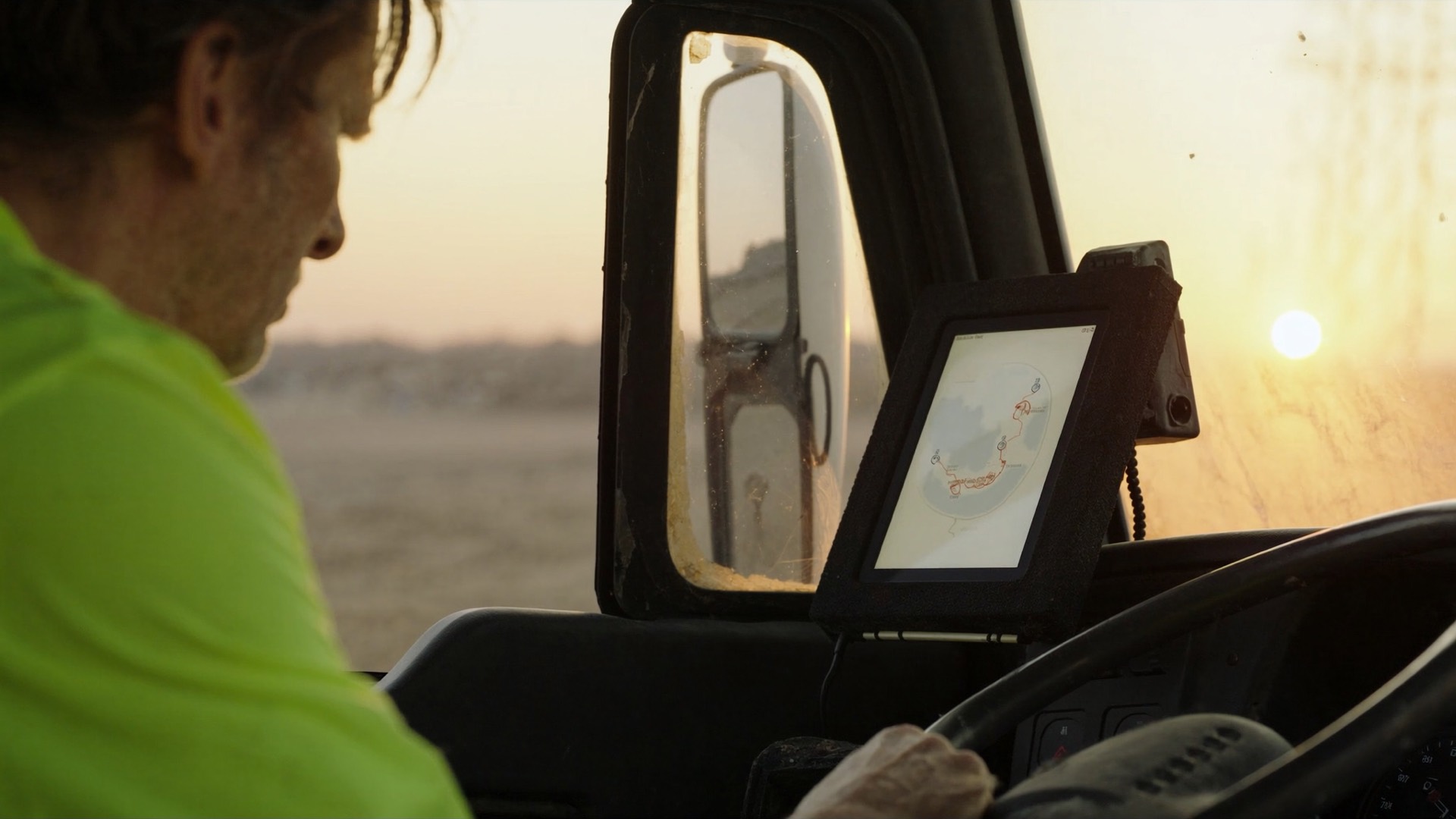
Stops in order, guidance to the next one, and photo proof when something goes wrong. Work is saved on the tablet and sent when signal returns.
Last updated
 GPS · on route R-12
The driver app runs on a tablet or phone your office has enrolled. A driver taps their name, enters a 4-digit PIN and sees today's stops in the order dispatch set. Guidance leads the truck to each stop, and the app can check a stop off as the truck drives past on the correct side. Skips and exceptions need a photo and a reason, container drops need the serial and placement photos, and everything the driver does reaches the office board without a phone call.
- PIN sign-in on an enrolled company tablet, no passwords
- Stops in order with turn-by-turn guidance
- Photo proof for exceptions, container drops and scale tickets
Paper and phone calls cost the day
A route sheet cannot tell the office what happened at the curb, and a driver cannot read a texted change while backing up a truck.
- A driver skips a stop and the office hears about it from the customer.
- A route change is read over the phone and written on the back of a sheet.
- Nobody can prove a can was dropped at the right address.
- A dump ticket gets lost between the scale and the office.
- Drivers share one login, so nothing says who did what.
- A dead zone on the route means the day's work is lost or retyped.
Capabilities
What drivers get on the tablet
The tools a driver needs from the yard gate to the scale and back.
PIN sign-in
Tap your name and enter a 4-digit PIN on a tablet the office has enrolled.
Stops in order
Today's routes and stops appear in the order dispatch set, and changes show up on the tablet.
Turn-by-turn guidance
A guide screen leads the truck to each stop, or hand off to your maps app.
Drive-past check-off
The app can complete a stop as the truck passes it on the correct side.
Photo proof
Skips and exceptions need a photo and a reason before the driver can move on.
Container proof
Serial and placement photos for every roll-off and cart delivery or pickup.
Dump tickets
Record scale tickets from the haul so disposal and billing have the weight.
Offline queue
Completions and photos wait on the tablet and send when signal returns.
Inspections and inbox
Pre-trip and post-trip inspections with a drawn signature, plus messages from dispatch.
A driver's day in the app
From the first sign-in to the last dump ticket.
Step 1
Sign in and inspect
The driver picks their name, enters a PIN and starts the pre-trip.
- Enrolled company tablets only
- Drawn signature on the inspection
- Defects raise an issue for the shop
Step 2
Work the stops
Guidance leads to each stop and the driver finishes it, or flags it.
- Exceptions need a photo and a reason
- Container stops need serial and placement photos
- Office sees progress as it happens
Step 3
Close the day
Tickets and inspections go in, and the finished work moves toward billing.
- Dump tickets recorded on the haul
- Offline work sends when signal returns
- Post-trip inspection closes the day
Driver app checklist
Tick what your drivers have today. Anything left unticked is a call to the office.
0 of 9 checked
Have a question?
Frequently asked questions
It installs from the browser on a tablet or phone. An iPhone and iPad app has been submitted to the App Store, but we do not call it released until Apple approves it. There is no Android app.
On a company tablet the office has enrolled with a one-time code, the driver taps their name and enters a 4-digit PIN. There is no texted-code sign-in.
Completions and photos are saved on the tablet and sent when the signal comes back.
No. Exceptions, skips, container drops and scale tickets need photos. Routine stops record the time, place, driver and truck.
Yes. Push-to-talk radio connects drivers, dispatch and the shop: tap the mic once and talk. The office can turn it on per company and choose who can talk or only listen. Audio is never recorded.
Still curious? Call (779) 256-5501